Live trading
Trading on your phone
How the live page works on a phone.
The live page works on a phone with everything the computer has. The buttons you need fast stay pinned to the bottom of the screen, and the rest opens in a sheet. Open Newport in your phone's browser and sign in as usual.
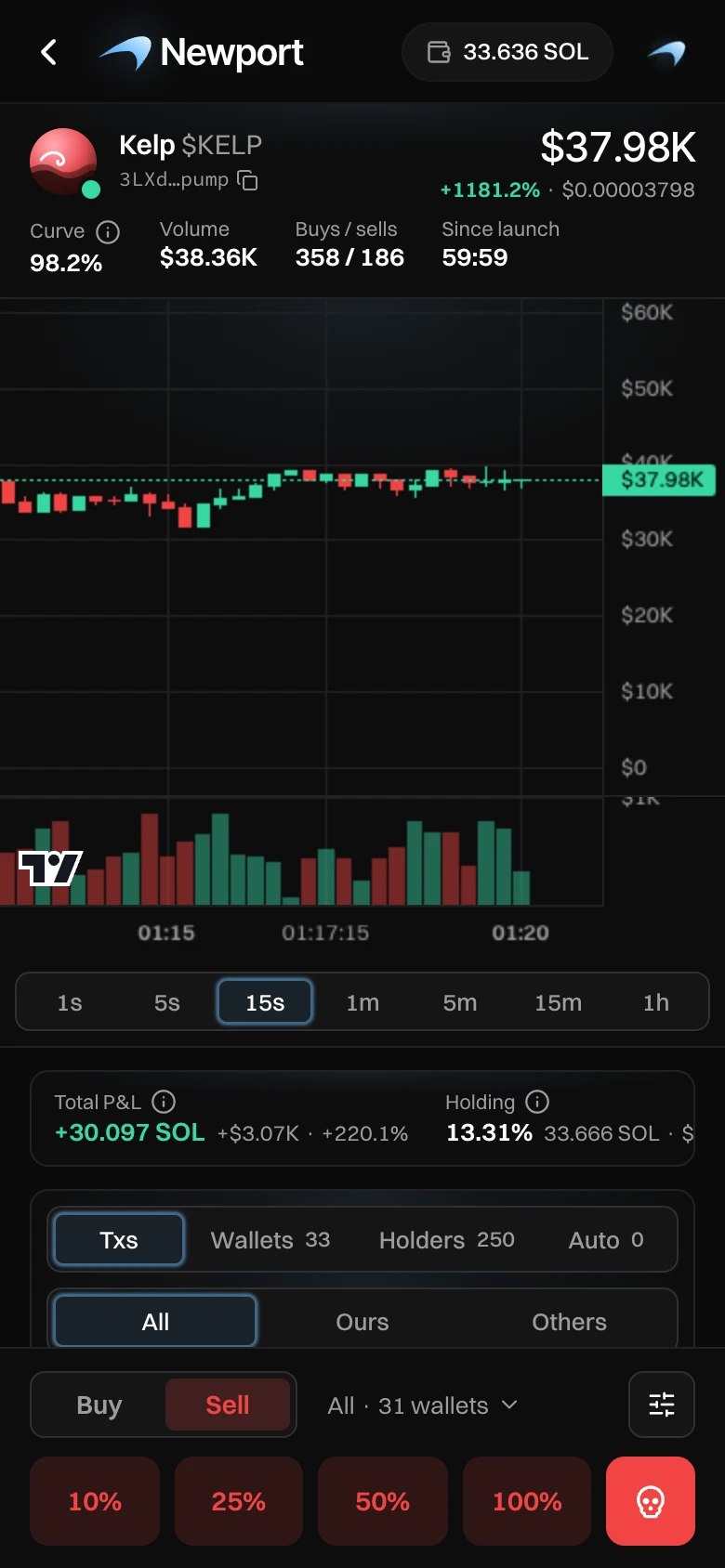
- The market cap, the change and the price, with the stats under them. Swipe the stats sideways for more.
- The chart, with the timeframes under it.
- Your position: Total P&L first, then Holding, Unrealized and Realized. Swipe sideways.
- The trade bar.
The trade bar
The bar at the bottom stays in place while you scroll.
- Buy or Sell.
- Which wallets and how many, for example "All · 31 wallets". Tap it to open the Trade sheet and change it.
- The four presets. One tap sends the order, as in the Trade panel.
- The skull button is NUKE: one tap sells 100% from every wallet holding tokens.
- The button on the right of the bar opens the Trade sheet.
The Trade sheet
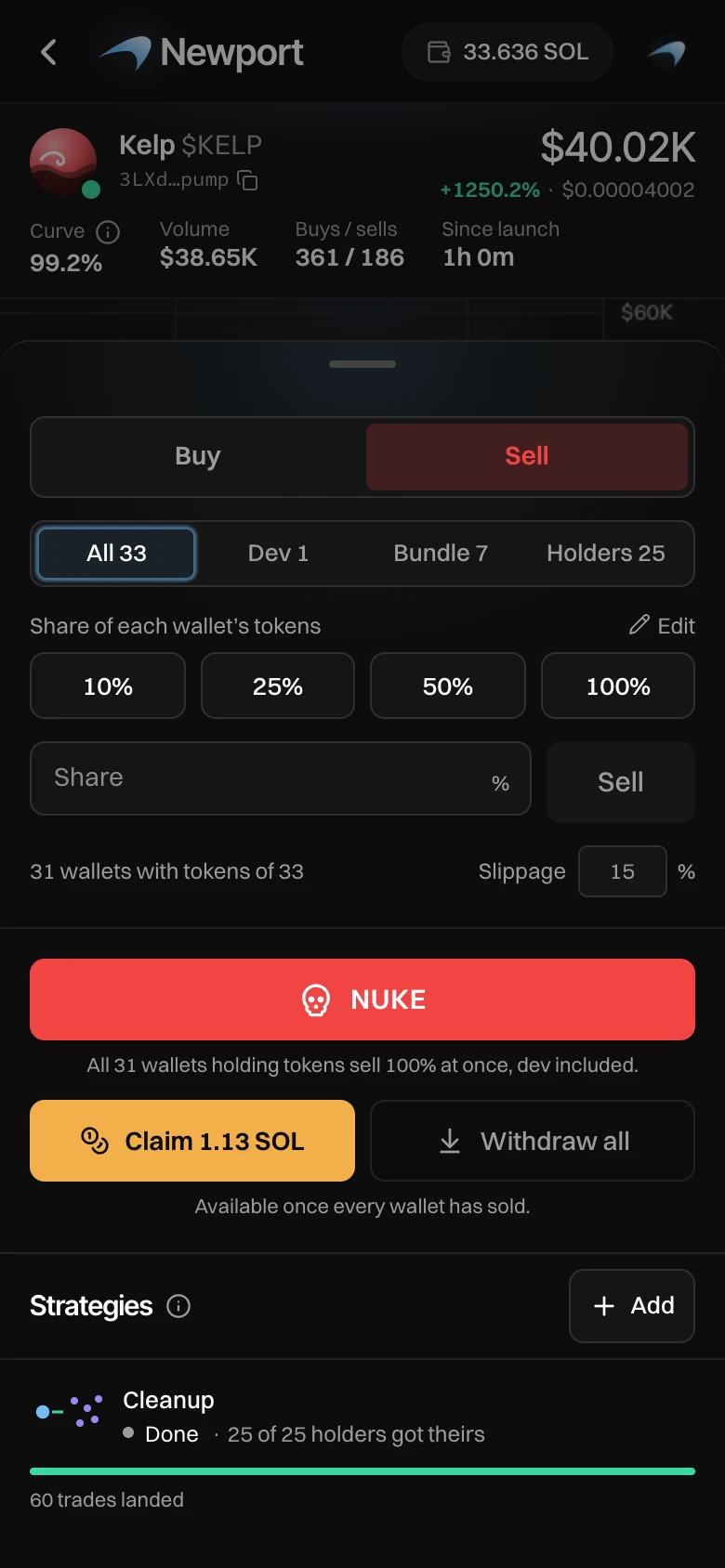
The sheet holds the whole Trade panel: which wallets, your own amount, slippage, Edit for the presets, Claim and Withdraw all side by side, and Strategies. Tap the handle at its top, or outside it, to close it.
Tables on a phone
The tabs sit across the table, and the table scrolls with the page. In Wallets, tap a row to show its buy and sell buttons. See Txs, Wallets, Holders and Auto.