Find your way around
Learn the sidebar, search, the launch list and the controls you use on every screen.
Everything in Newport is one or two clicks from the sidebar on the left. On a phone, the same things sit in a bar at the bottom of the screen.
The sidebar
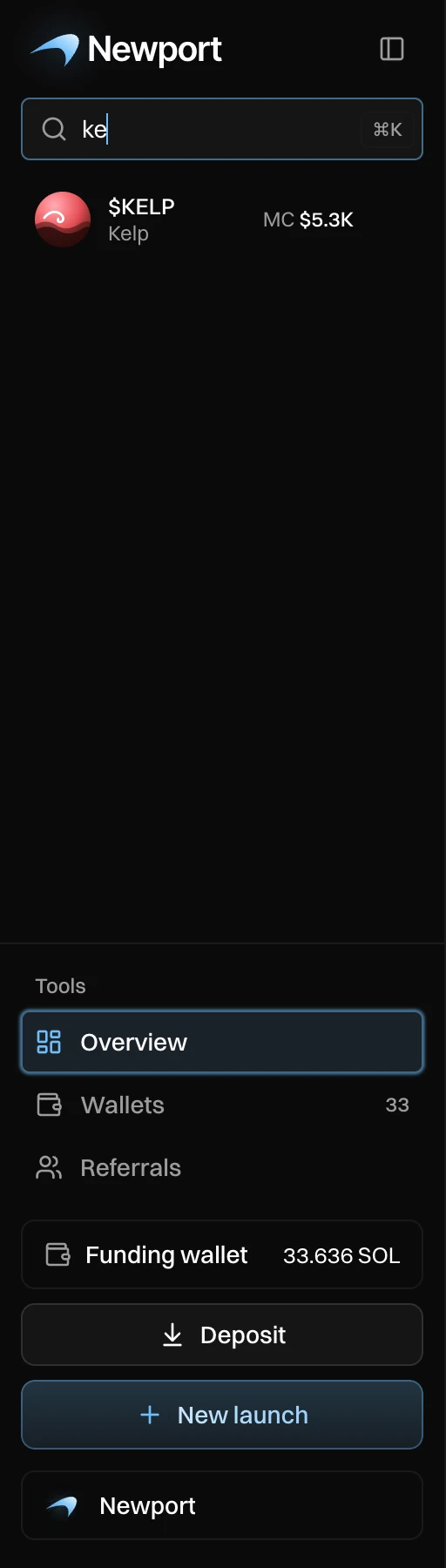
From top to bottom:
- Search launches (⌘K or Ctrl+K): finds a draft or token by its name or ticker.
- Your launches: each row shows the token's picture, ticker and name, and its market cap once live (MC), or Draft. A row opens the live page of a launched token, and the next unfinished step of a draft.
- Tools: Overview, Wallets (with how many buyer wallets you have) and Referrals.
- Funding wallet: its balance. It opens Wallets.
- Deposit: add SOL to your funding wallet.
- New launch: start a launch.
- Your account: Manage account, Sign out, and Guide, which opens the welcome guide again.
The button next to the logo folds the sidebar into a narrow bar of icons. Newport remembers your choice in this browser.
The launch list
Hold the pointer over a launch and press ··· for more:
- A draft: Delete draft deletes it and its launch settings. Your wallets and their SOL stay as they are.
- A launched token: Archive moves it under Archived, at the end of the list. Back to the list brings it back.
A launch with no trade, launch or change for 12 hours moves under Inactive. It keeps running, and search still finds it.
On your phone
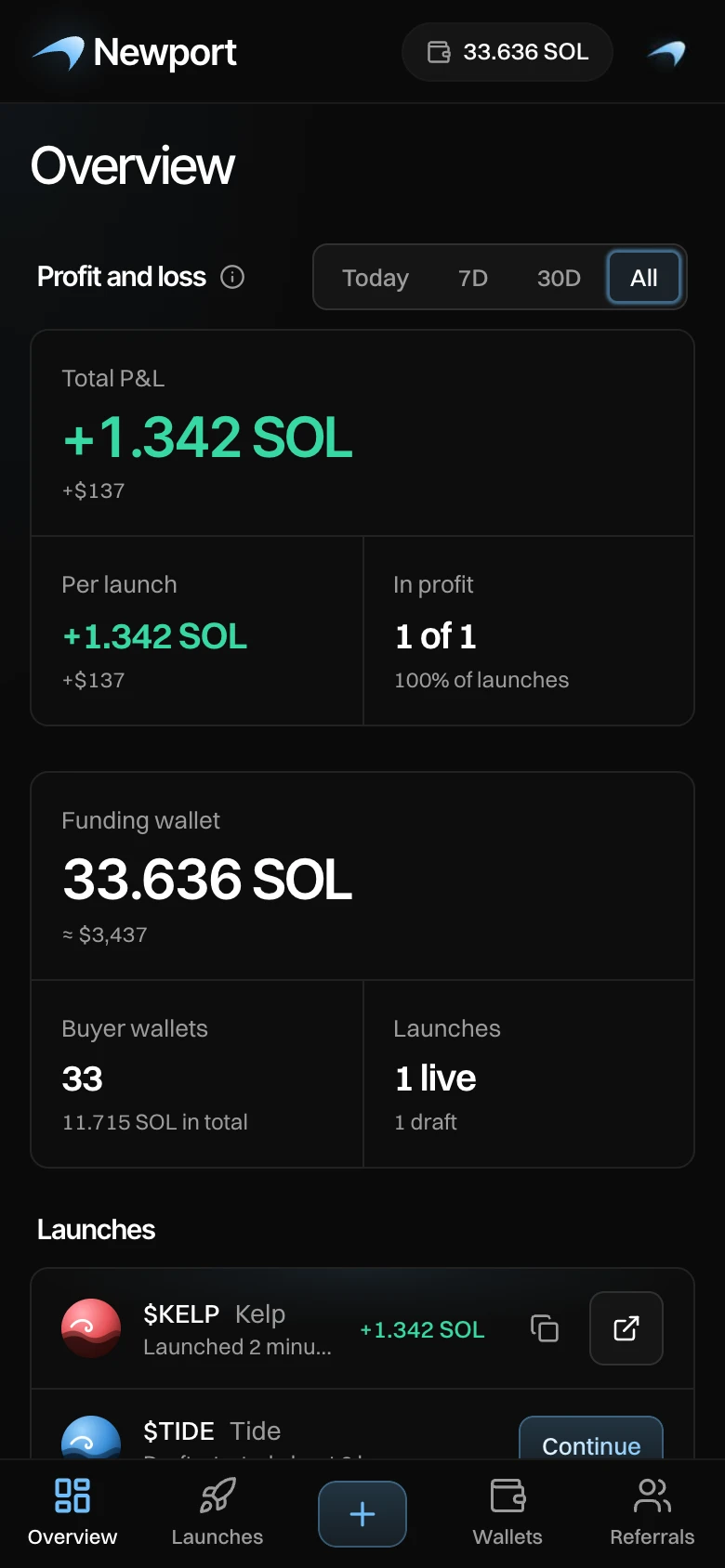
- The top bar shows your funding wallet's balance. Tap it to open Wallets.
- The bar at the bottom has Overview, Launches (your list, with search), + (New launch), Wallets and Referrals.
- On a launch's screens, Back goes to the screen before.
- Windows open from the bottom of the screen.
The welcome guide
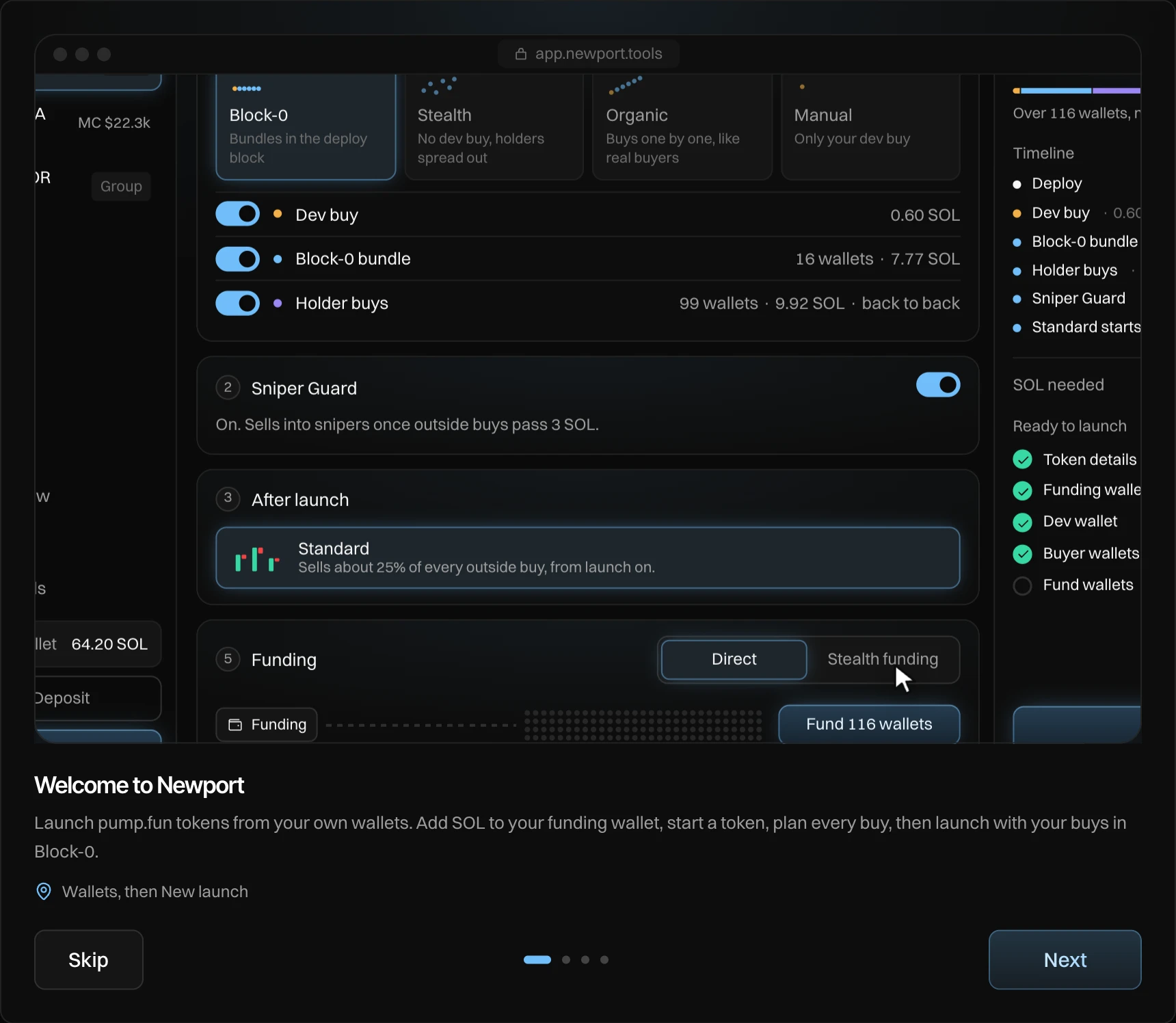
The guide opens the first time you sign in, in four short steps. To see it again, open your account at the bottom of the sidebar and press Guide.
Controls you meet everywhere
| Control | How it works |
|---|---|
| ⓘ | Hold the pointer over it, or tap it on a phone, to read what a setting does. |
| Number fields | Type a number, or press − and +. The arrow keys change it by one step, Shift and an arrow by ten steps. A number out of range goes back to the nearest allowed one when you leave the field. |
| Second press | Starting a strategy and the group's sells ask for a second press that names what happens, for example "Sure? 25%". Trades in the live page's trade panel, and NUKE, go out on the first press. |
| Email code | Before you export keys, withdraw to an address outside Newport, or make a stealth withdrawal, Newport sends you a code by email. Funding a launch never asks for one. |
When Newport has been updated, a bar says New version available. Press Reload when it suits you; Newport never reloads by itself.